
Download & Install Car Parking Multiplayer on PC
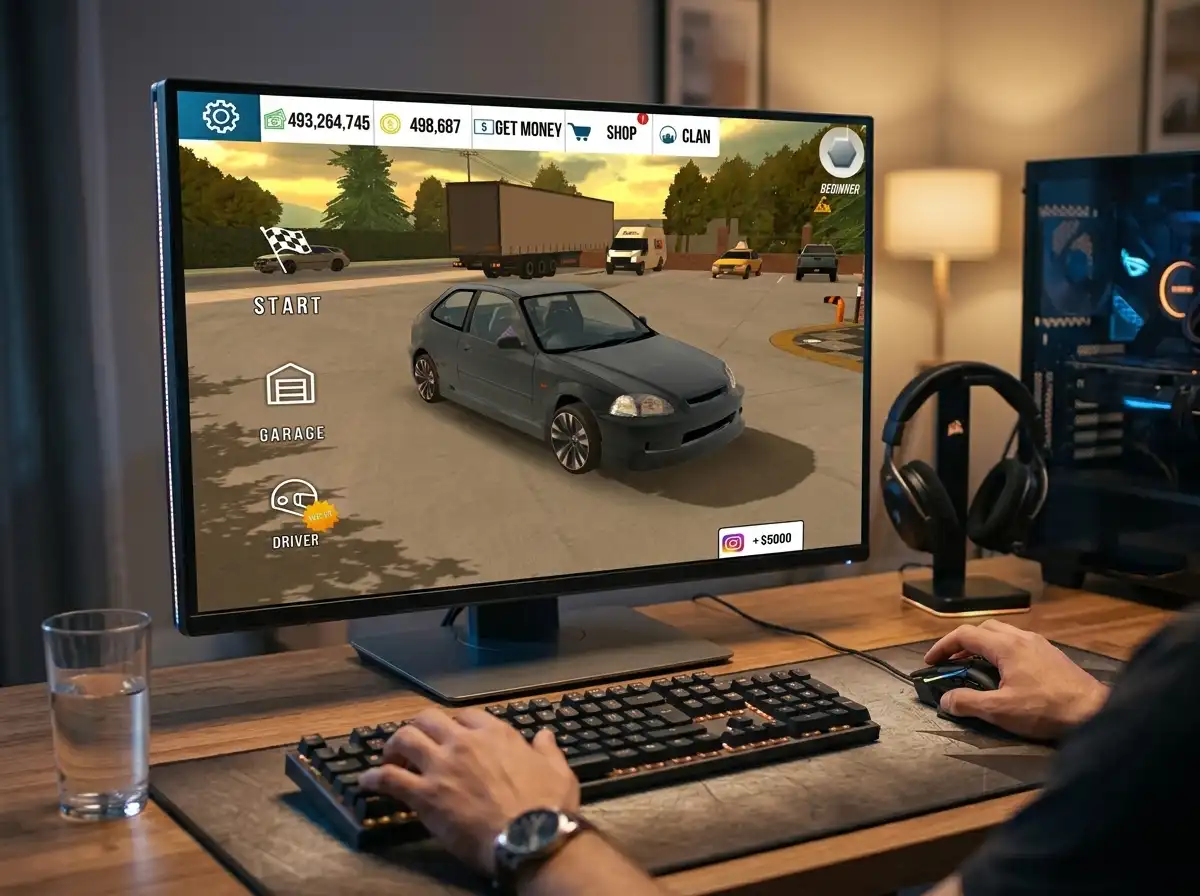
Playing Car Parking Multiplayer on a phone is fun, but sometimes the small screen and touch controls can feel a little limiting. By playing it on your PC or Mac, you get smoother performance, a larger screen, and easier controls, making the game much more enjoyable.
With the help of an emulator, you can easily install and set up Car Parking Multiplayer on your PC. We will guide you step by step on how to install the game, choose the right emulator, and configure the best settings for smooth gameplay.
App Specification
Size
2 GB
Latest Version
v4.9.8
Requirements
6.0 and up
Downloads
100,000,000+
Last Updated
Recently
Category
Simulation
Developer
olzhass
Rating
4.9/5.0
Car Parking Multiplayer Introduction
Car Parking Multiplayer is a driving simulation game that goes beyond traditional parking challenges by offering open-world exploration and multiplayer interactions. You can engage with other players in races, police modes, and even trade cars. The extensive open world also includes real-life elements such as gas stations, repair shops, interactive buildings, and even homes.
In addition, you also have extensive car customization options, which allow you to modify car performance and appearance. It has about 200+ cars, including sports cars, trucks, and classic models, and you will find all the world’s top cars in the list.

How to Install Car Parking Multiplayer on PC via PlayStore
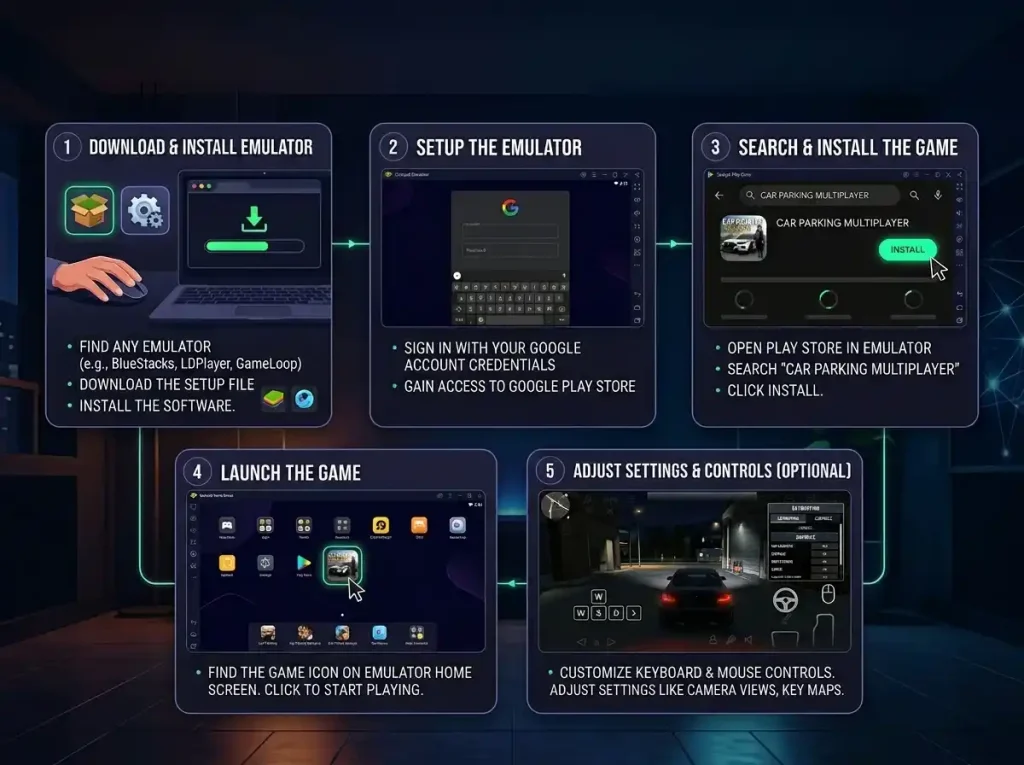
To enjoy the cpm on pc, you will need to use an Android emulator, as there is no specific pc version. Follow the step-by-step guide below to install the game easily.
1. Download and Install an Emulator
Download any emulator on your pc such as BlueStacks, LDPlayer, or GameLoop, and install it.
2. Set up the Emulator
After installing the emulator, open the emulator and sign in with your Google Account credentials to access the Google Play Store.
3. Search and Install Car Parking Multiplayer
- Open the Google Play Store within the emulator
- Search for “Car Parking Multiplayer”.
- Click on the “Install” button to begin downloading the game.
4. Launch the Game
Once the installation is complete, you can find the Car Parking Multiplayer icon in your emulator’s home screen. Click on the icon to start playing the game on your PC.
5. Adjust Settings and Controls (Optional)
- Customize your keyboard and mouse controls for an optimized gameplay experience.
- You can adjust settings such as camera views, key mapping for acceleration, brake, and steering.
How to Install Car Parking Multiplayer Mod Apk on Your PC
You can install the Car Parking Multiplayer Mod Apk on your PC using the simple drag-and-drop method. Follow the steps below:
1. Download and Install an Emulator
Download any emulator on your PC, such as BlueStacks, LDPlayer, or GameLoop, and install it. Open the emulator once the installation is done.
2. Download the Mod APK
Download the latest version of the Car Parking Multiplayer Mod APK from our homepage. Make sure the download is complete before moving to the next step.
3. Drag and Drop the APK File
- Open your emulator on the PC.
- Find the downloaded Mod APK file on your PC.
- Simply drag the APK file and drop it directly into the emulator window.
- The emulator will automatically start the installation process.
4. Wait for Installation to Complete
Once you drop the file, you will see an installation prompt on the emulator screen. Wait for a few seconds until the installation is finished.
5. Launch the Game
After the installation is complete, you will find the Car Parking Multiplayer icon on your emulator’s home screen. Click on it to start playing the game on your PC.
System Requirements
Minimum Requirements
These are the basic specifications you will need to play the game without any major issues.
Operating System
Windows 7 / 8 / 10 / 11 (64‑bit recommended)
Processor
Intel or AMD Dual‑Core CPU
RAM
4 GB
Storage
At least 5 GB of free space
Graphics
Integrated graphics with basic support (e.g., Intel HD Graphics)
Internet
Stable connection for multiplayer features
This setup will allow you to install the emulator and run Car Parking Multiplayer with playable performance, especially at lower settings.
Recommended Requirements
For better performance and enhanced graphics, you will need the following specifications.
Operating System
Windows 10 / 11 (64‑bit)
Processor
Quad‑Core CPU (Intel i5 or AMD Ryzen 5 series or higher)
RAM
8 GB or more
Storage
10 GB+ SSD recommended
Graphics
Dedicated GPU (e.g., NVIDIA GTX/RTX or AMD Radeon series)
Internet
Fast, stable broadband connection
With these specs, you will get faster load times, higher resolution textures, and a more responsive gaming experience.
Tips for Optimal Performance
- Update drivers: Keep your GPU drivers up to date for better emulator compatibility.
- Allocate more resources: Most emulators let you assign more CPU cores and RAM, which can enhance frame rates.
- Adjust Settings: Within the emulator settings, you can tweak graphics quality and performance to match your PC’s capabilities.
Best Emulator For CPM
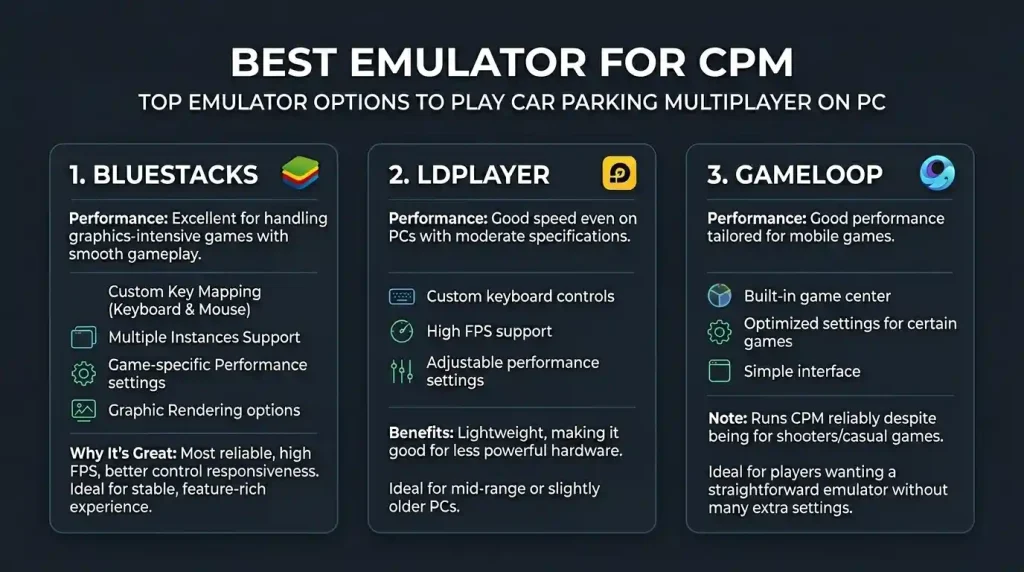
The following are the top emulator options you can use to play car parking multiplayer on pc.
1. BlueStacks
- Performance: Excellent for handling graphics-intensive games with smooth gameplay.
- Compatibility: Works with most Android games and apps, including Car Parking Multiplayer.
- Features:
- Custom key mapping (keyboard and mouse controls)
- Multiple instances support
- Game-specific performance settings
- Graphic rendering options
- Why It’s Great: BlueStacks is widely regarded as the most reliable Android emulator, especially for players who want high FPS and better control responsiveness on PC
- Ideal for: Players who want a stable, feature-rich experience with customization options.
2. LDPlayer
- Performance: It has good speed even on PCs with moderate specifications.
- Features:
- Custom keyboard controls
- High FPS support
- Adjustable performance settings
- Benefits: Lightweight compared to some emulators, making it a good choice for PCs with less powerful hardware.
- Ideal for: Users with mid‑range or slightly older PCs who still want smooth gameplay.
3. GameLoop
- Performance: Good performance tailored for mobile games.
- Features:
- Built‑in game center
- Optimized settings for certain games
- Simple interface
- Note: While GameLoop is traditionally popular for shooter and casual games, it still runs Car Parking Multiplayer reliably.
- Ideal for: Players who want a straightforward emulator without many extra settings.
Tips for Choosing
- High‑end PC: Go with BlueStacks for max performance and customization.
- Mid‑range PC: LDPlayer offers a great balance between performance and resource usage.
- Simple Gameplay:GameLoop is fine if you want a simple option without any complexity.
Advantages of Playing Car Parking Multiplayer on PC
Better Graphics
You will get higher graphics on pc compared to mobile devices. You can experience the game at higher FPS (up to 120) without any lag. You will be able to see the car interiors in more detail on a bigger screen. Also, you can fine-tune graphics settings for better performance to run the game smoothly.
Larger Screen Size
A larger screen provides better visibility to the players and allows them to see more details and objects within the game. Playing cpm on pc also reduces eye strain and provides a more comfortable gaming experience. It also improves your reflexes because you have a broader view of the surroundings, and you can easily spot objects or cars.
Customizable Controls
On PC, you can use a keyboard and mouse, which offer more accurate control compared to touch screens on mobile devices. You will be able to fully customize your control layout, whether you prefer using the arrow keys, WASD, or other key combinations. Additionally, you can also use a joystick or gamepad by connecting it to the PC.
No Battery Drain
When playing the cpm on the PC, you don’t have to worry about the battery life or levels. Just plug it into a power source and play as long as you want without any interruption. Also, on mobile, when battery levels get low, it enters the power-saving mode, which affects the game performance, but on PC, you are free from such concerns.
Multiple Emulator Options
You have the flexibility to choose the emulator that best fits your system, depending on your PC specs. Each emulator has its strengths and is optimized for different types of configurations. BlueStacks is known for providing the best performance on high-end PCs, while LDPlayer and MEmu are great choices for mid-range and lower-end PCs.
Pros and Cons of Playing CPM on PC
Pros
Higher graphics quality and up to 120 FPS
Larger screen for better visibility and comfort
Customizable keyboard, mouse, and gamepad support
No battery drain or power saving interruptions
Multiple emulator options to choose from
More storage available on PC
Full control over graphics and performance settings
Cons
Requires a powerful PC for the best visuals
Takes time to configure controls initially
Requires a constant power source
No official PC version, emulator required
Emulator setup can be complex for beginners
Some emulators may show ads or require upgrades
Common Issues and Troubleshooting
Here are some common issues and ways to troubleshoot you may face:
Game Not Launching
- Ensure your emulator is updated to the latest version.
- Verify your PC meets the minimum requirements; insufficient RAM or an outdated graphics driver often prevents launch.
- Restart your PC and the emulator; sometimes, background processes interfere with the game startup.
Lag or Low FPS
- Close unnecessary applications to free up system resources.
- Check that your emulator’s performance settings match your PC’s hardware capabilities.
- Increasing allocated RAM and CPU can improve FPS.
- Lower in-game graphics settings if the game stutters on high-end visuals.
Emulator Crashes or Freezes
- Update your graphics drivers and the emulator software.
- Enable “Eco Mode” or similar optimization features to reduce CPU/GPU load.
- Reinstall the emulator if crashes persist.
Connectivity Problems in Multiplayer Mode
Stable internet is crucial for open-world multiplayer. Use a wired connection if possible.
Disable VPNs or firewall settings that may block the game server.
Occasionally, server maintenance may cause temporary connection issues. Check official announcements or forums.
Game Data or Save Issues
Make sure your emulator has proper permissions to store game data.
If the game fails to save progress, clearing the cache or reinstalling can help.
Cloud save options (if available) can prevent data loss.
Questions Players Ask
Conclusion
Playing Car Parking Multiplayer on PC or Mac takes the game to the next level by offering better graphics, a larger screen, and easier controls. An emulator makes it easy to install and play the game, and by choosing the right emulator and optimizing your settings, you can ensure smooth performance without lag or interruptions. Whether you have a high-end or mid-range PC, by following our step-by-step guide, you can easily set up the game on PC.
Leave a Reply